 Paai Fai
Rehearse a complete five-minute countdown
The PNG below was exported from the actual countdown renderer and frozen at 05:00. It does not run in this article or show the time of your event. Open the editor and start a real timer for your display.
Use a short heading such as “STARTING SOON” and a finish message such as “THE ACTIVITY HAS STARTED”. A meaningful finish message tells viewers what happens next instead of leaving a row of zeroes.
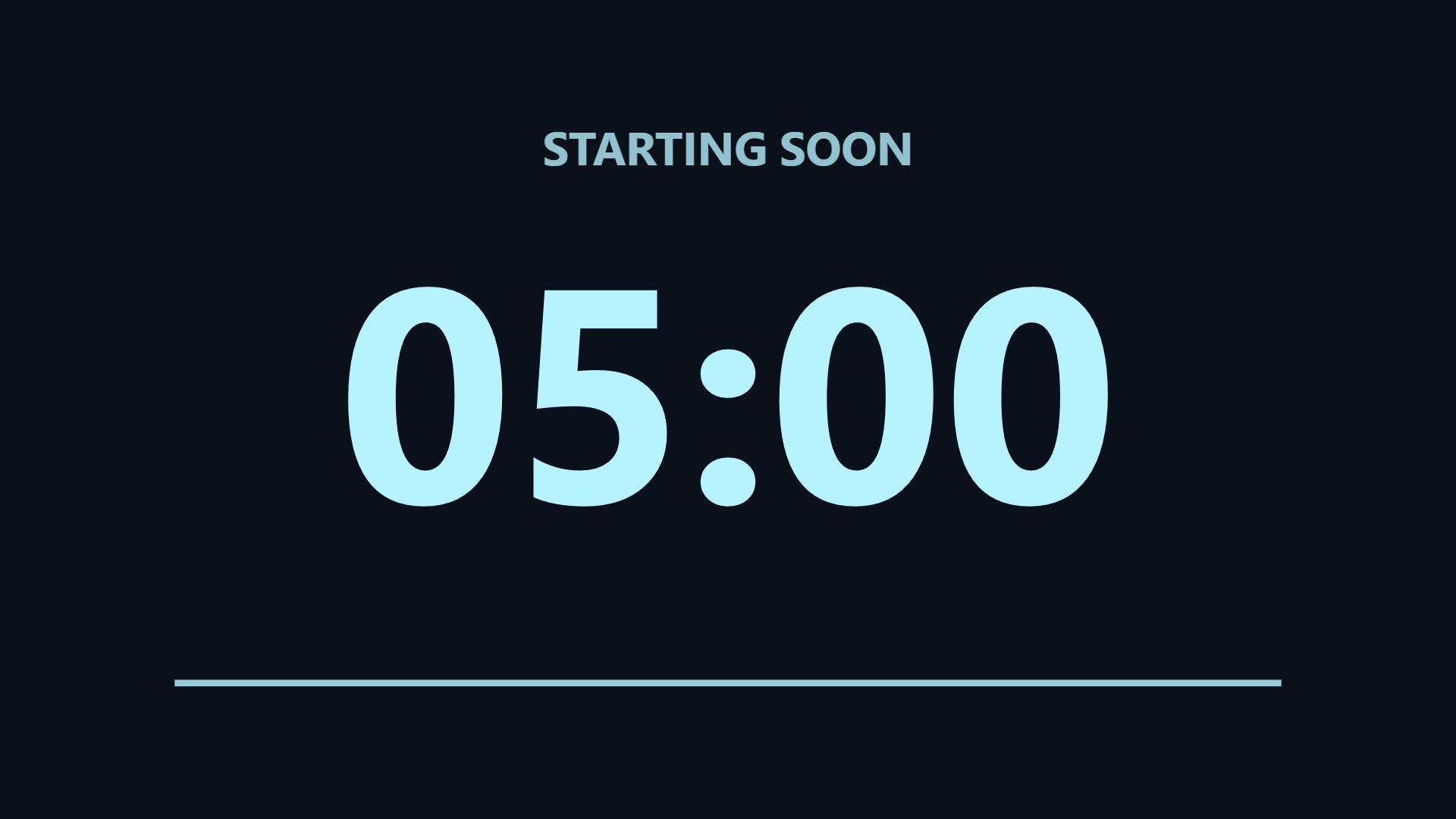
- Choose Countdown, enter the heading and set a five-minute duration.
- Set the finish message, start the timer and open fullscreen.
- Pause the animation briefly, then resume. The countdown keeps its original deadline; playback pause does not stop wall-clock time.
- Rehearse until the finish message appears. For a fixed event schedule, use an end time and verify the display device's clock.
Choose a duration or an end time deliberately
A duration suits a break that starts when the operator is ready. An end time suits a schedule that must finish at the same moment even if the screen opens late. Changing the device clock can make the displayed time jump. Verify it before starting and choose one display as your reference.
A share link retains the original deadline. Opening it tomorrow does not start another five-minute interval. Start a new round and create a fresh link when reusing it. The display is not a certified timing system.
Choose a duration or an end time
Select Countdown mode, then choose a preset duration or enter seconds. Alternatively, choose a future date and time using the device’s local time. The first message becomes the heading, and a separate completion message appears at the end.
The progress bar represents the remaining share of the original duration. Pausing animation does not pause the clock. Closing and reopening the page recalculates the time left from the saved end timestamp. Clear the timer before preparing another round.
Understand which time the screen uses
Countdowns and the large Clock mode depend on the device clock. Clock mode can format that time in Bangkok, Tokyo, London, New York or UTC and optionally display the date. An incorrect device clock produces an incorrect countdown.
A shared sign carries the same end timestamp, so it does not start a fresh full-duration countdown for every recipient. Each device still measures time independently. These tools are not appropriate for safety-critical timing or precise production synchronization.
Rehearse the event flow
Test the start, completion message and return to another sign before the event. Scenes can hold separate before-show, countdown and break layouts. Manual cue buttons and the bracket shortcuts let you move between them while the editor is open.
Video exports capture the countdown while the clip is being made in real time. Keep the page visible until it finishes. Browser codecs vary, and the resulting clip is silent. Use a live display when the countdown must continue rather than replay a recorded moment.
Events that benefit from a countdown
A visible countdown tells people how long they are waiting and reduces repeated questions about the start time. Choose the timing method that suits the event.
| Event | Heading and finish message | Timing method |
|---|---|---|
| Conference break | BACK IN / NEXT SESSION STARTING | 10–15 minute duration, started when the break is announced |
| Live stream or product launch | STARTING SOON / WE ARE LIVE | End time from the published schedule |
| Wedding ceremony | CEREMONY BEGINS IN / PLEASE TAKE YOUR SEATS | End time; check the device clock beforehand |
| New Year's Eve | COUNTDOWN TO NEW YEAR / HAPPY NEW YEAR 🎉 | End time 00:00; compare the device with a reference clock |
| Classroom activity | ACTIVITY TIME / PLEASE SUBMIT | Short duration; not a substitute for certified exam timing |
- Make the heading say what people are waiting for, not just show digits.
- Make the finish message say what to do next.
- When several screens must match, check every device clock first, because each device counts from its own time.